
Skip to content

How to Observe Property Changes with LitElement and TypeScript

This article was written over 18 months ago and may contain information that is out of date. Some content may be relevant but please refer to the relevant official documentation or available resources for the latest information.

In a previous post, I explained how to manage LitElement properties using @property and @internalProperty decorators through TypeScript. Also, I explained how LitElement manages the declared properties and when it triggers an update cycle, causing the component to re-render its defined template.

A couple of days ago, I saw an interesting question regarding these property changes on a developer website:

How to observe @property changes in a LitElement component?

In this article, I will explain how you can observe (and "react" maybe?) these properties considering the lifecycle of a LitElement component.

A Practical Use Case

Let's suppose you're building a small application that needs to display a list of Users. You can select any of them and other details should be displayed. In this case, the Address information is displayed.
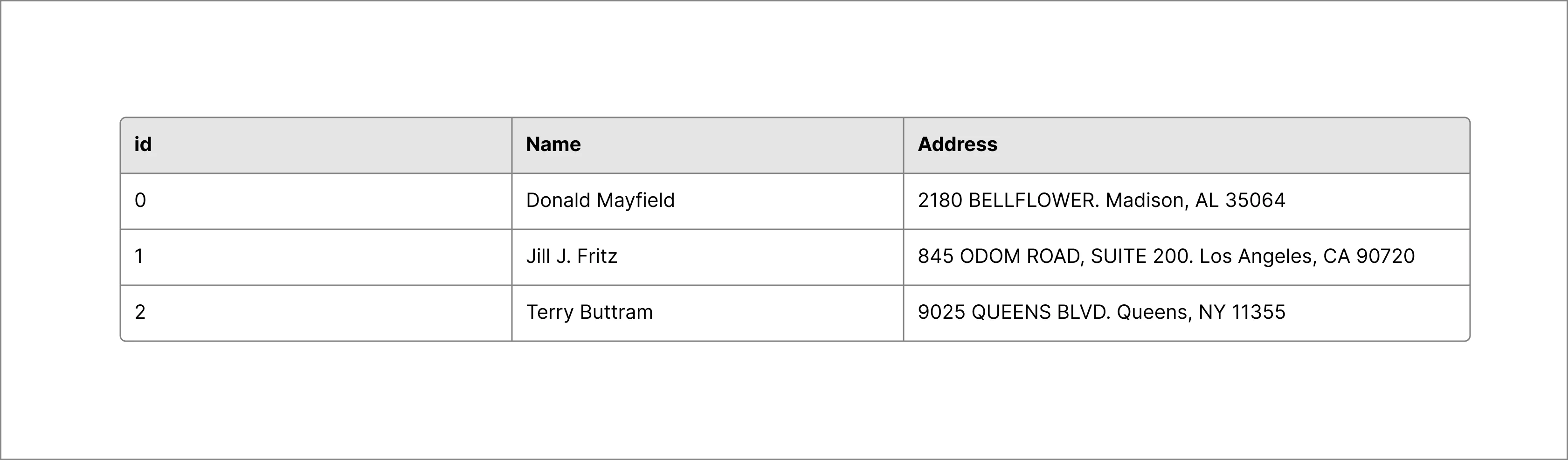
user-addresses

First Steps

Instead of creating a full project from scratch, we'll take the @property vs @internalProperty demo as the starting point. Open the link and create a fork to follow up with next steps.

Project Content

Once you complete the fork, you'll have a project ready with:

  • The Data Model, using TypeScript interfaces and static typing.
  • A Data Set, which exports two constants for easy testing: users and address.
  • Two Web Components using LitElement
    • The MainViewer Component, which is a container component that will be in charge of displaying both the list of users and their details.
    • The AddressViewer Component, which is a child component that receives the userId selected in the main list.

Property Changes

Let's take a closer look at the existing components to understand the main properties that will be considered later.

The main-viewer.ts file defines the following template:

<div>
  <h1>User Address Viewer</h1>
  <!-- The User list is rendered here -->
  <!-- Child component rendered below -->
  <address-viewer .userId=${this.userId}></address-viewer>
</div>

The code snippet shows the relevance of the userId property, declared as part of the MainViewer component. Every time it changes, the render function will be triggered, sending the new property value to its child component(<address-viewer userId=${newValue}>).

On the other hand, the address-viewer.ts file defines the public property userId and determines the need of an internal property to have the Address object:

// address-viewer.ts

@customElement("address-viewer")
class AddressViewer extends LitElement {
  @property({ type: Number }) userId: number;
  @internalProperty() userAddress?: Address;
}

Let's focus on the userId property of the AddressViewer component to understanding how we can observe the changes.

Observing the Property Changes

When a new value is set to a declared property, it triggers an update cycle that results in a re-rendering process. While all that happens, different methods are invoked and we can use some of them to know what properties have been changed.

The Property's setter method

This is the first place where we can observe a change. Let's update the @property() declaration in the address-viewer.ts file:

// address-viewer.ts

@customElement("address-viewer")
class AddressViewer extends LitElement {

  @property({ type: Number }) set userId(userId: number) {
    const oldValue = this._userId;
    this._userId = userId;
    this.requestUpdate("userId", oldValue);
  }

  private _userId: number;

  constructor() {
    super();
  }

  get userId() {
    return this._userId;
  }
}

As you can see, we just added both set and get methods to handle the brand new _userId property. Creating a new private property is a common practice when the accessor methods are used. The underscore prefix for _userId is also a code convention only.

However, since we're writing our setter method here, we may need to call the requestUpdate method manually to schedule an update for the component. In other words, LitElement generates a setter method for declared properties and call the requestUpdate automatically.

The requestUpdate method

This method will be called when an element should be updated based on a component state or property change. It's a good place to "catch" the new value before the update() and render() functions are invoked.

// address-viewer.ts

requestUpdate(name?: PropertyKey, oldValue?: unknown) {
  const newValue = this[name];
  // You can process the "newValue" and "oldValue" here
  // ....
  // Proceed to schedule an update
  return super.requestUpdate(name, oldValue);
}

In this case, the method will receive the name of the property that has been changed along with the previous value: oldValue. Make sure to call super.requestUpdate(name, oldValue) at the end.

The update method

This is another option to observe the property changes. See the example below:

update(changedProperties: Map<string, unknown>) {
  if (changedProperties.has("userId")) {
    const oldValue = changedProperties.get("userId") as number;
    const newValue = this.userId;
    this.loadAddress(newValue);
  }
  super.update(changedProperties);
}

The update method has a slightly different signature compared with the previous options:

The changedProperties parameter is a Map structure where the keys are the names of the declared properties and the values correspond to the old values (the new values are set already and are available via this.<propertyName>).

You can use the changedProperties.has("<propName>") to find out if your property has been changed or not. If your property has been changed, then use changedProperties.get("<propName>") to get access to the old value. A type assertion is needed here to match the static type defined by the declared property.

It can be overridden to render and keep updated the DOM. In that case, you must call super.update(changedProperties) at the end to move forward with the rendering process.

If you set a property inside this method, it won't trigger another update.

The updated method

The signature of this method will match with the update. However, this method is called when the element's DOM has been updated and rendered. Also, you don't need to call any other method since you're at the end of the lifecycle of the component.

updated(changedProperties: Map<string, unknown>) {
  console.log(`updated(). changedProps: `, changedProperties);
  if (changedProperties.has("userId")) {
    // get the old value here
    const oldValue = changedProperties.get("userId") as number;
    // new value is 
    const newValue = this.userId;
  }

  // No need to call any other method here.
}

You can use this method to:

  • Identify a property change after an update
  • Perform post-updating tasks or any processing after updating.

As a side note, if you set a property inside this method, it will trigger the update process again.

Live Demo

Want to play around with this code? Just open the Stackblitz editor:

Feel free to reach out on Twitter if you have any questions. Follow me on GitHub to see more about my work.

This Dot is a consultancy dedicated to guiding companies through their modernization and digital transformation journeys. Specializing in replatforming, modernizing, and launching new initiatives, we stand out by taking true ownership of your engineering projects.

We love helping teams with projects that have missed their deadlines or helping keep your strategic digital initiatives on course. Check out our case studies and our clients that trust us with their engineering.

You might also like

End-to-end type-safety with JSON Schema cover image

End-to-end type-safety with JSON Schema

End-to-end type-safety with JSON Schema I recently wrote an introduction to JSON Schema post. If you’re unfamiliar with it, check out the post, but TLDR: It’s a schema specification that can be used to define the input and output data for your JSON API. In my post, I highlight many fantastic benefits you can reap from defining schemas for your JSON API. One of the more interesting things you can achieve with your schemas is end-to-end type safety from your backend API to your client application(s). In this post, we will explore how this can be accomplished slightly deeper. Overview The basic idea of what we want to achieve is: * a JSON API server that validates input and output data using JSON Schema * The JSON Schema definitions that our API uses transformed into TypeScript types With those pieces in place, we can achieve type safety on our API server and the consuming client application. The server side is pretty straightforward if you’re using a server like Fastify with already enabled JSON Schema support. This post will focus on the concepts more than the actual implementation details though. Here’s a simple diagram illustrating the high-level concept: We can share the schema and type declaration between the client and server. In that case, we can make a request to an endpoint where we know its type and schema, and assuming the server validates the data against the schema before sending it back to the client, our client can be confident about the type of the response data. Marrying JSON Schema and TypeScript There are a couple of different ways to accomplish this: * Generating types from schema definitions using code generation tools * Creating TypeBox definitions that can infer TypeScript types and be compiled to JSON Schema I recommend considering both and figuring out which would better fit your application and workflows. Like anything else, each has its own set of trade-offs. In my experience, I’ve found TypeBox to be the most compelling if you want to go deep with this pattern. Code generation A couple of different packages are available for generating TS types from JSON Schema definitions. * https://github.com/bcherny/json-schema-to-typescript * https://github.com/vega/ts-json-schema-generator They are CLI tools that you can provide a glob path to where your schema files are located and will generate TS declaration files to a specified output path. You can set up an npm hook or a similar type of script that will generate types for your development environment. TypeBox TypeBox is a JSON Schema type builder. With this approach, instead of json files, we define schemas in code using the TypeBox API. The TypeBox definitions infer to TypeScript types directly, which eliminates the code generation step described above. Here’s a simple example from the documentation of a JSON Schema definition declared with TypeBox: ` This can then be inferred as a TypeScript type: ` Aside from schemas and types, TypeBox can do a lot more to help us on our type-safety journey. We will explore it a bit more in upcoming sections. Sharing schemas between client and server applications Sharing our JSON Schema between our server and client app is the main requirement for end-to-end type-safety. There are a couple of different ways to accomplish this, but the simplest would be to set up our codebase as a monorepo that contains both the server and client app. Some popular options for TypeScript monorepos are: PNPM, Turborepo, and NX. If a monorepo is not an option, you can publish your schema and types as a package that can be installed in both projects. However, this setup would require a lot more maintenance work. Ultimately, as long as you can import your schemas and types from the client and server app, you are in good shape. Server-to-client validation and type-safety For the sake of simplicity, let's focus on data flowing from the server to the client for now. Generally speaking, the concepts also apply in reverse, as long as your JSON API server validates your inputs and outputs. We’ll look at the most basic version of having strongly typed data on the client from a request to our server. Type-safe client requests In our server application, if we validate the /users endpoint with a shared schema - on the client side, when we make the request to the endpoint, we know that the response data is validated using the user schema. As long as we are confident of this fact, we can use the generated type from that schema as the return type on our client fetch call. Here’s some pseudocode: ` Our server endpoint would look something like this: ` You could get creative and build out a map that defines all of your endpoints, their metadata, and schemas, and use the map to define your server endpoints and create an API client. Transforming data over the wire Everything looks stellar, but we can still take our efforts a bit further. To this point, we are still limited to serialized JSON data. If we have a created_at field (number or ISO string) tied to our user, and we want it to be a Date object when we get a hold of it on the client side - additional work and consideration are required. There are some different strategies out there for deserializing JSON data. The great thing about having shared schemas between our client and server is that we can encode our type information in the schema without sending additional metadata from our server to the client. Using format to declare type data In my initial JSON Schema blog post, I touched on the format field of the specification. In our schema, if the actual type of our date is a string in ISO8601 format, we can declare our format to be "date-time". We can use this information on the client to transform the field into a proper Date object. ` Transforming serialized JSON Data This can be a little bit tricky; again, there are many ways to accomplish it. To demonstrate the concept, we’ll use TypeBox to define our schemas as discussed above. TypeBox provides a Transform type that you can use to declare, encode, and decode methods for your schema definition. ` It even provides helpers to statically generate the decoded and encoded types for your schema ` If you declare your decode and encode functions for your schemas, you can then use the TypeBox API to handle decoding the serialized values returned from your JSON API. Here’s what the concept looks like in practice fetching a user from our API: ` Nice. You could use a validation library like Zod to achieve a similar result but here we aren’t actually doing any validation on our client side. That happened on the server. We just know the types based on the schema since both ends share them. On the client, we are just transforming our serialized JSON into what we want it to be in our client application. Summary There are a lot of pieces in play to accomplish end-to-end type safety. With the help of JSON Schema and TypeBox though, it feels like light work for a semi-roll-your-own type of solution. Another great thing about it is that it’s flexible and based on pretty core concepts like a JSON API paired with a TypeScript-based client application. The number of benefits that you can reap from defining JSON Schemas for your APIs is really great. If you’re like me and wanna keep it simple by avoiding GraphQL or other similar tools, this is a great approach....

How to configure and optimize a new Serverless Framework project with TypeScript cover image

How to configure and optimize a new Serverless Framework project with TypeScript

How to configure and optimize a new Serverless Framework project with TypeScript If you’re trying to ship some serverless functions to the cloud quickly, Serverless Framework is a great way to deploy to AWS Lambda quickly. It allows you to deploy APIs, schedule tasks, build workflows, and process cloud events through a code configuration. Serverless Framework supports all the same language runtimes as Lambda, so you can use JavaScript, Ruby, Python, PHP, PowerShell, C#, and Go. When writing JavaScript though, TypeScript has emerged as a popular choice as it is a superset of the language and provides static typing, which many developers have found invaluable. In this post, we will set up a new Serverless Framework project that uses TypeScript and some of the optimizations I recommend for collaborating with teams. These will be my preferences, but I’ll mention other great alternatives that exist as well. Starting a New Project The first thing we’ll want to ensure is that we have the serverless framework installed locally so we can utilize its commands. You can install this using npm: ` From here, we can initialize the project our project by running the serverless command to run the CLI. You should see a prompt like the following: We’ll just use the Node.js - Starter for this demo since we’ll be doing a lot of our customization, but you should check out the other options. At this point, give your project a name. If you use the Serverless Dashboard, select the org you want to use or skip it. For this, we’ll skip this step as we won’t be using the dashboard. We’ll also skip deployment, but you can run this step using your default AWS profile. You’ll now have an initialized project with 4 files: .gitignore index.js - this holds our handler that is configured in the configuration README.md - this has some useful framework commands that you may find useful serverless.yml - this is the main configuration file for defining your serverless infrastructure We’ll cover these in more depth in a minute, but this setup lacks many things. First, I can’t write TypeScript files. I also don’t have a way to run and test things locally. Let’s solve these. Enabling TypeScript and Local Dev Serverless Framework’s most significant feature is its rich plugin library. There are 2 packages I install on any project I’m working on: - serverless-offline - serverless-esbuild Serverless Offline emulates AWS features so you can test your API functions locally. There aren’t any alternatives to this for Serverless Framework, and it doesn’t handle everything AWS can do. For instance, authorizer functions don’t work locally, so offline development may not be on the table for you if this is a must-have feature. There are some other limitations, and I’d consult their issues and READMEs for a thorough understanding, but I’ve found this to be excellent for 99% of projects I’ve done with the framework. Serverless Esbuild allows you to use TypeScript and gives you extremely fast bundler and minifier capabilities. There are a few alternatives for TypeScript, but I don’t like them for a few reasons. First is Serverless Bundle, which will give you a fully configured webpack-based project with other features like linters, loaders, and other features pre-configured. I’ve had to escape their default settings on several occasions and found the plugin not to be as flexible as I wanted. If you need that advanced configuration but want to stay on webpack, Serverless Webpack allows you to take all of what Bundle does and extend it with your customizations. If I’m getting to this level, though, I just want a zero-configuration option which esbuild can be, so I opt for it instead. Its performance is also incredible when it comes to bundle times. If you want just TypeScript, though, many people use serverless-plugin-typescript, but it doesn’t support all TypeScript features out of the box and can be hard to configure. To configure my preferred setup, do the following: 1. Install the plugins by setting up your package.json. I’m using yarn but you can use your preferred package manager. ` Note: I’m also installing serverless here, so I have a local copy that can be used in package.json scripts. I strongly recommend doing this. 2. In our serverless.yml, let’s install the plugins and configure them. When done, our configuration should look like this: ` 3. Now, in our newly created package.json, let’s add a script to run the local dev server. Our package.json should now look like this: ` We can now run yarn dev in our project root and get a running server 🎉 But our handler is still in JavaScript. We’ll want to pull in some types and set our tsconfig.json to fix this. For the types, I use aws-lambda and @types/serverless, which can be installed as dev dependencies. For reference, my tsconfig.json looks like this: ` And I’ve updated our index.js to index.ts and updated it to read as follows: ` With this, we now have TypeScript running and can do local development. Our function doesn’t expose an HTTP route making it harder to test so let’s expose it quickly with some configuration: ` So now we can point our browser to http://localhost:3000/healthcheck and see an output showing our endpoint working! Making the Configuration DX Better ion DX Better Many developers don’t love YAML because of its strict whitespace rules. Serverless Framework supports JavaScript or JSON configurations out of the box, but we want to know if our configuration is valid as we’re writing it. Luckily, we can now use TypeScript to generate a type-safe configuration file! We’ll need to add 2 more packages to make this work to our dev dependencies: ` Now, we can change our serverless.yml to serverless.ts and rewrite it with type safety! ` Note that we can’t use the export keyword for our configuration and need to use module.exports instead. Further Optimization There are a few more settings I like to enable in serverless projects that I want to share with you. AWS Profile In the provider section of our configuration, we can set a profile field. This will relate to the AWS configured profile we want to use for this project. I recommend this path if you’re working on multiple projects to avoid deploying to the wrong AWS target. You can run aws configure –profile to set this up. The profile name specified should match what you put in your Serverless Configuration. Individual Packaging Cold starts#:~:text=Cold%20start%20in%20computing%20refers,cache%20or%20starting%20up%20subsystems.) are a big problem in serverless computing. We need to optimize to make them as small as possible and one of the best ways is to make our lambda functions as small as possible. By default, serverless framework bundles all functions configured into a single executable that gets uploaded to lambda, but you can actually change that setting by specifying you want each function bundled individually. This is a top-level setting in your serverless configuration and will help reduce your function bundle sizes leading to better performance on cold starts. ` Memory & Timeout Lambda charges you based on an intersection of memory usage and function runtime. They have some limits to what you can set these values to but out of the box, the values are 128MB of memory and 3s for timeout. Depending on what you’re doing, you’ll want to adjust these settings. API Gateway has a timeout window of 30s so you won’t be able to exceed that timeout window for HTTP events, but other Lambdas have a 15-minute timeout window on AWS. For memory, you’ll be able to go all the way to 10GB for your functions as needed. I tend to default to 512MB of memory and a 10s timeout window but make sure you base your values on real-world runtime values from your monitoring. Monitoring Speaking of monitoring, by default, your logs will go to Cloudwatch but AWS X-Ray is off by default. You can enable this using the tracing configuration and setting the services you want to trace to true for quick debugging. You can see all these settings in my serverless configuration in the code published to our demo repo: https://github.com/thisdot/blog-demos/tree/main/serverless-setup-demo Other Notes Two other important serverless features I want to share aren’t as common in small apps, but if you’re trying to build larger applications, this is important. First is the useDotenv feature which I talk more about in this blog post. Many people still use the serverless-dotenv-plugin which is no longer needed for newer projects with basic needs. The second is if you’re using multiple cloud services. By default, your lambdas may not have permission to access the other resources it needs. You can read more about this in the official serverless documentation about IAM permissions. Conclusion If you’re interested in a new serverless project, these settings should help you get up and running quickly to make your project a great developer experience for you and those working with you. If you want to avoid doing these steps yourself, check out our starter.dev serverless kit to help you get started....

How to Build a Slideshow App Using Swiper and Angular cover image

How to Build a Slideshow App Using Swiper and Angular

Google Slides and Microsoft PowerPoint are the most popular options to build presentations nowadays. However, have you ever considered having a custom tool where you can use your web development knowledge to create beautiful slides? In this post, we will build a slideshow app with the ability to render one slide at a time using Angular, Swiper, and a little bit of CSS. Project Setup Prerequisites You'll need to have installed the following tools in your local environment: - Node.js. Preferably the latest LTS version. - A package manager. You can use either NPM or Yarn. This tutorial will use NPM. Creating the Angular Project Let's start creating a project from scratch using the Angular CLI tool. ` This command will initialize a base project using some configuration options: - --routing. It will create a routing module. - --prefix corp. It defines a prefix to be applied to the selectors for created components(corp in this case). The default value is app. - --style scss. The file extension for the styling files. - --skip-tests. It avoids the generations of the .spec.ts files, which are used for testing. Creating the Slides Component We can create a brand new component to handle the content of the application's slides. We can do that using the command mg generate as follows: ` The output of the previous command will show the auto-generated files. Update the Routing Configuration Remember we used the flag --routing while creating the project? That parameter has created the main routing configuration file for the application: app-routing.module.ts. Let's update it to be able to render the slides component by default. ` Update the App Component template Remove all code except the router-outlet placeholder: ` This will allow you to render the slides component by default once the routing configuration is running. Using Swiper What is Swiper? Swiper is a popular JavaScript library that lets you create transitions that can work on websites, mobile web apps, and mobile native/hybrid apps. It's available for all modern frameworks and it's powered with top-notch features you can find on the official website. Installing Swiper The plugin is available via NPM and you can use the following command to install it in the project. ` Updating the Application Module Next, we'll need to update the application module before starting to use Swiper. ` Using swiper element in the Template It's time to work in the slide component, and make use of the plugin along with the available options. ` For a better understanding, let's describe what's happening in the above template: * The element will create a Swiper instance to be rendered in the component. * slidesPerView will set the number of slides visible at the same time. * navigation will render the navigation buttons to slide to the left and right. * pagination will set the pagination configuration through an object. * keyboard will enable navigation through the keyboard. * virtual will enable the virtual slides feature. This is important in case you have several slides, and you want to limit the amount of them to be rendered in the DOM. * class will set a class to customize the styling. * swiperSlide is an Angular directive that helps to render a slide instance. One important note here is the custom container created under the swiperSlide directive allows us to customize the way we can render every slide. In this case, it's used to set a layout for every slide, and make sure to render it centered, and using the whole height of the viewport. Set the Swiper Configuration As you may note, the template will require additional configurations, and we'll need to create a couple of slides for the component. ` In the above code snippet, the component imports the SwiperCore class along with the required modules. Next, the component needs to install those using a SwiperCore.use([]) call. Later, a BehaviorSubject is created to emit all slides content once the component gets initialized. Using Swiper Styles Since the current application is configured to use SCSS styles, we'll need to import the following styles into the slides.component.scss file: ` Of course, these imports will work with the latest version of Swiper(version 8 at the time of writing this article). However, some users have found some issues while importing Swiper styles (mainly after doing an upgrade from Swiper v6 and v7). For example: ` or an error like this: ` If you got any of those issues, you can give it a try with the following imports instead: ` For the purpose of this demo, we'll attach additional styling to make it work: ` The .my-swiper selector will set the appropriate height for every slide. On other hand, the .swiper-slide-container selector will provide a layout as a slide container. And this is how it will look on your web browser. Live Demo and Source Code Want to play around with the final application? Just open the following link in your browser: https://luixaviles.github.io/slideshow-angular-swiper. Find the complete angular project in this GitHub repository: slideshow-angular-swiper. Do not forget to give it a star ⭐️ and play around with the code. Feel free to reach out on Twitter if you have any questions. Follow me on GitHub to see more about my work....

Implementing Dynamic Types in Docusign Extension Apps cover image

Implementing Dynamic Types in Docusign Extension Apps

Implementing Dynamic Types in Docusign Extension Apps In our previous blog post about Docusign Extension Apps, Advanced Authentication and Onboarding Workflows with Docusign Extension Apps, we touched on how you can extend the OAuth 2 flow to build a more powerful onboarding flow for your Extension Apps. In this blog post, we will continue explaining more advanced patterns in developing Extension Apps. For that reason, we assume at least basic familiarity with how Extension Apps work and ideally some experience developing them. To give a brief recap, Docusign Extension Apps are a powerful way to embed custom logic into Docusign agreement workflows. These apps are lightweight services, typically cloud-hosted, that integrate at specific workflow extension points to perform custom actions, such as data validation, participant input collection, or interaction with third-party services. Each Extension App is configured using a manifest file. This manifest defines metadata such as the app's author, support links, and the list of extension points it uses (these are the locations in the workflow where your app's logic will be executed). The extension points that are relevant for us in the context of this blog post are GetTypeNames and GetTypeDefinitions. These are used by Docusign to retrieve the types supported by the Extension App and their definitions, and to show them in the Maestro UI. In most apps, these types are static and rarely change. However, they don't have to be. They can also be dynamic and change based on certain configurations in the target system that the Extension App is integrating with, or based on the user role assigned to the Maestro administrator on the target system. Static vs. Dynamic Types To explain the difference between static and dynamic types, we'll use the example from our previous blog post, where we integrated with an imaginary task management system called TaskVibe. In the example, our Extension App enabled agreement workflows to communicate with TaskVibe, allowing tasks to be read, created, and updated. Our first approach to implementing the GetTypeNames and GetTypeDefinitions endpoints for the TaskVibe Extension App might look like the following. The GetTypeNames endpoint returns a single record named task: ` Given the type name task, the GetTypeDefinitions endpoint would return the following definition for that type: ` As noted in the Docusign documentation, this endpoint must return a Concerto schema representing the type. For clarity, we've omitted most of the Concerto-specific properties. The above declaration states that we have a task type, and this type has properties that correspond to task fields in TaskVibe, such as record ID, title, description, assignee, and so on. The type definition and its properties, as described above, are static and they never change. A TaskVibe task will always have the same properties, and these are essentially set in stone. Now, imagine a scenario where TaskVibe supports custom properties that are also project-dependent. One project in TaskVibe might follow a typical agile workflow with sprints, and the project manager might want a "Sprint" field in every task within that project. Another project might use a Kanban workflow, where the project manager wants a status field with values like "Backlog," "ToDo," and so on. With static types, we would need to return every possible field from any project as part of the GetTypeDefinitions response, and this introduces new challenges. For example, we might be dealing with hundreds of custom field types, and showing them in the Maestro UI might be too overwhelming for the Maestro administrator. Or we might be returning fields that are simply not usable by the Maestro administrator because they relate to projects the administrator doesn't have access to in TaskVibe. With dynamic types, however, we can support this level of customization. Implementing Dynamic Types When Docusign sends a request to the GetTypeNames endpoint and the types are dynamic, the Extension App has a bit more work than before. As we've mentioned earlier, we can no longer return a generic task type. Instead, we need to look into each of the TaskVibe projects the user has access to, and return the tasks as they are represented under each project, with all the custom fields. (Determining access can usually be done by making a query to a user information endpoint on the target system using the same OAuth 2 token used for other calls.) Once we find the task definitions on TaskVibe, we then need to return them in the response of GetTypeNames, where each type corresponds to a task for the given project. This is a big difference from static types, where we would only return a single, generic task. For example: ` The key point here is that we are now returning one type per task in a TaskVibe project. You can think of this as having a separate class for each type of task, in object-oriented lingo. The type name can be any string you choose, but it needs to be unique in the list, and it needs to contain the minimum information necessary to be able to distinguish it from other task definitions in the list. In our case, we've decided to form the ID by concatenating the string "task_" with the ID of the project on TaskVibe. The implementation of the GetTypeDefinitions endpoint needs to: 1. Extract the project ID from the requested type name. 1. Using the project ID, retrieve the task definition from TaskVibe for that project. This definition specifies which fields are present on the project's tasks, including all custom fields. 1. Once the fields are retrieved, map them to the properties of the Concerto schema. The resulting JSON could look like this (again, many of the Concerto properties have been omitted for clarity): ` Now, type definitions are fully dynamic and project-dependent. Caching of Type Definitions on Docusign Docusign maintains a cache of type definitions after an initial connection. This means that changes made to your integration (particularly when using dynamic types) might not be immediately visible in the Maestro UI. To ensure users see the latest data, it's useful to inform them that they may need to refresh their Docusign connection in the App Center UI if new fields are added to their integrated system (like TaskVibe). As an example, a newly added custom field on a TaskVibe project wouldn't be reflected until this refresh occurs. Conclusion In this blog post, we've explored how to leverage dynamic types within Docusign Extension Apps to create more flexible integrations with external systems. While static types offer simplicity, they can be constraining when working with external systems that offer a high level of customization. We hope that this blog post provides you with some ideas on how you can tackle similar problems in your Extension Apps....

Let's innovate together!

We're ready to be your trusted technical partners in your digital innovation journey.

Whether it's modernization or custom software solutions, our team of experts can guide you through best practices and how to build scalable, performant software that lasts.

Prefer email? hi@thisdot.co