
Skip to content

Teleporting in Vue 3

Teleporting in Vue 3

1 Part Series

This article was written over 18 months ago and may contain information that is out of date. Some content may be relevant but please refer to the relevant official documentation or available resources for the latest information.

Teleporting is a new feature brought by the release of Vue 3, inspired by React Portals. The Vue team added this feature with the help of a third-party plugin named Portal-Vue.

Teleporting, as its name suggests, allows you to move an object from one place to another. In Vue JS terms, it allows you to define a component in one place, and render it in a different position in the DOM tree, even outside the scope of the Vue app.

In this article, I will introduce Teleporting, explain the need for it, and finally share a running example to see it in action.

What is Teleporting?

A Component in Vue JS is a first-class citizen. It's encouraged to encapsulate UI, and related logic, into smaller components. These can be reused and nested, one inside another, to build a tree of components that make up your app UI.

Whereas some UI components are better placed towards the end of the <body> element, these require fixed or absolute positioning and management of their z-index. Modal Dialog, Notification UI or Popup UI are an example of this.

The motive behind placing them there is to simplify their styling, eliminate the need to write complex styles, and to deal with z-index Stacking Context behavior.

This is where Vue 3 Teleporting comes to the rescue, and reconciles between the two contradicting approaches forementioned. It allows you to maintain a nested tree of UI Components by letting you physically define a nested component inside one another. It works its magic to render the same component in a different position (different from where it was initially defined) in DOM, satisfying the best practices stated in the latter approach.

You can read more on Teleporting Use Cases on the official RFC page for this feature.

Teleporting can also render components in DOM outside the scope of the app. This opens the door to a number of possibilities that it can help with. For instance, Vue is used to build a certain section of the Page. With Teleporting, you can dynamically inject components into the DOM in other sections of the Page not belonging to the jurisdiction of the app. Think of it like Dashboards with widgets!

Now that you have an idea of what Teleporting is, let’s move on.

Teleport Component

Vue 3 provides the <teleport> component, which creates all the magic behind Teleporting. This component has two useful properties:

to: This required property specifies the location in DOM where it renders the content of the <teleport> component. The value can be any of the following variations below:

  • ID Selector: <teleport to="#location-in-dom">...</teleport>
  • Class Selector: <teleport to=".location-in-dom">...</teleport>
  • Data-Attr Selector: <teleport to="[data-location-in-dom]">...</teleport>
  • Reactive Property: <teleport :to="locationInDom">...</teleport>

disabled: This optional property, when assigned a value of true, disables the state of the <teleport> component. In a disabled state, its content is rendered in the same location where it's defined. Only when the disabled property is assigned a value of false, which is the default, the content is rendered in the DOM location specified in the to property.

One important side-effect to mention in this context is when the disabled property is bound to a reactive property. Switching the value between false and true causes the component to render in two different DOM locations. While doing so, the state of the rendered content is preserved. For example, a <teleport> component hosts a Video player. When the <teleport> component is disabled, the video starts playing in its place. When the disabled property is switched to false, the video continues playing in the new DOM location.

Finally, when you want the <teleport> component to be disabled but not rendering anything to the DOM, you may use v-if, the Vue JS Directive, to hide it and prevent it from rendering.

Vue 3 Modal Component

In this section, we will build a Vue Modal component. It will be used in the next section when I demonstrate the Teleporting feature.

There are countless numbers of Modal components out there. Instead of building ourselves a new one, I will make use of a Modal UI built by Chris Coyier, and introduced in his article on Considerations for Styling a Modal. This article is a valuable reference for building Modals as it explains every decision taken when building such a UI.

Here's a running example of the Modal UI on CodePen - Modal

Let's wrap it in a Vue JS component!

First of all, create a new Vue JS app by running these steps:

Step 1: Install @vue/cli NPM package

Open a terminal window and run the following command:

npm install -g @vue/cli

Step 2: Create a new Vue app

vue create vue-teleporting

Select the default preset when prompted.

Step 3: Run the app

Run the app to make sure it's working properly:

cd vue-teleporting
npm run serve

You should have a running app now!

Step 4: Build the Modal Component

Inside the /src/components/ folder, add a new Vue component named Modal.vue. Replace its content with the following:

<template>
  <div>
    <div class="modal-overlay" id="modal-overlay"></div>
    <div
      class="modal"
      id="modal"
      role="dialog"
      aria-labelledby="modal-header"
      aria-describedby="modal-body"
    >
      <button
        class="close-button"
        id="close-button"
        aria-label="Close modal"
        @click.prevent="closeModal"
      >X</button>
      <div class="modal-container">
        <header class="modal-header" id="modal-header">
          <slot name="header">Header goes here ...</slot>
        </header>

        <section class="modal-body" id="modal-body">
          <slot name="body">Body goes here ...</slot>
        </section>

        <footer class="modal-footer">
          <slot name="footer">Footer goes here ...</slot>
        </footer>
      </div>
    </div>
  </div>
</template>

<script>
export default {
  name: "Modal",
  methods: {
    closeModal() {
      this.$emit("close-modal");
    },
  },
};
</script>

I've made a few changes to convert this UI component to a Vue component. The additions include:

Three new sections representing the header, body, and footer of the Modal component.

The use of <slot> components to add flexibility.

You can read more about Slots in Vue JS by checking my article on Content Distribution in Vue JS.

The use of a few new styling tags to cater for the new sections.

Making the Modal accessible by introducing a few aria attributes. For instance, the use of role="dialog" helps assistive software identify the Modal component as being a Dialog or Window that's separated from the rest of the app UI.

You can read more about page accessibility by checking Daniel Marin's article, Make it Accessible: Better Layout with HTML

The Close button now emits the modal-close event to send a request to the parent component hosting this Modal to eventually close it.

Let's embed this new component inside the App.vue and run the app.

<template>
  <Modal @close-modal="closeModal">
    <template #body>
      <p>Lorem ipsum dolor sit amet, consectetur adipisicing elit. Repudiandae expedita corrupti laudantium aperiam, doloremque explicabo ipsum earum dicta saepe delectus totam vitae ipsam doloribus et obcaecati facilis eius assumenda, cumque.</p>
      <p>Lorem ipsum dolor sit amet, consectetur adipisicing elit. Repudiandae expedita corrupti laudantium aperiam, doloremque explicabo ipsum earum dicta saepe delectus totam vitae ipsam doloribus et obcaecati facilis eius assumenda, cumque.</p>
    </template>
  </Modal>
</template>

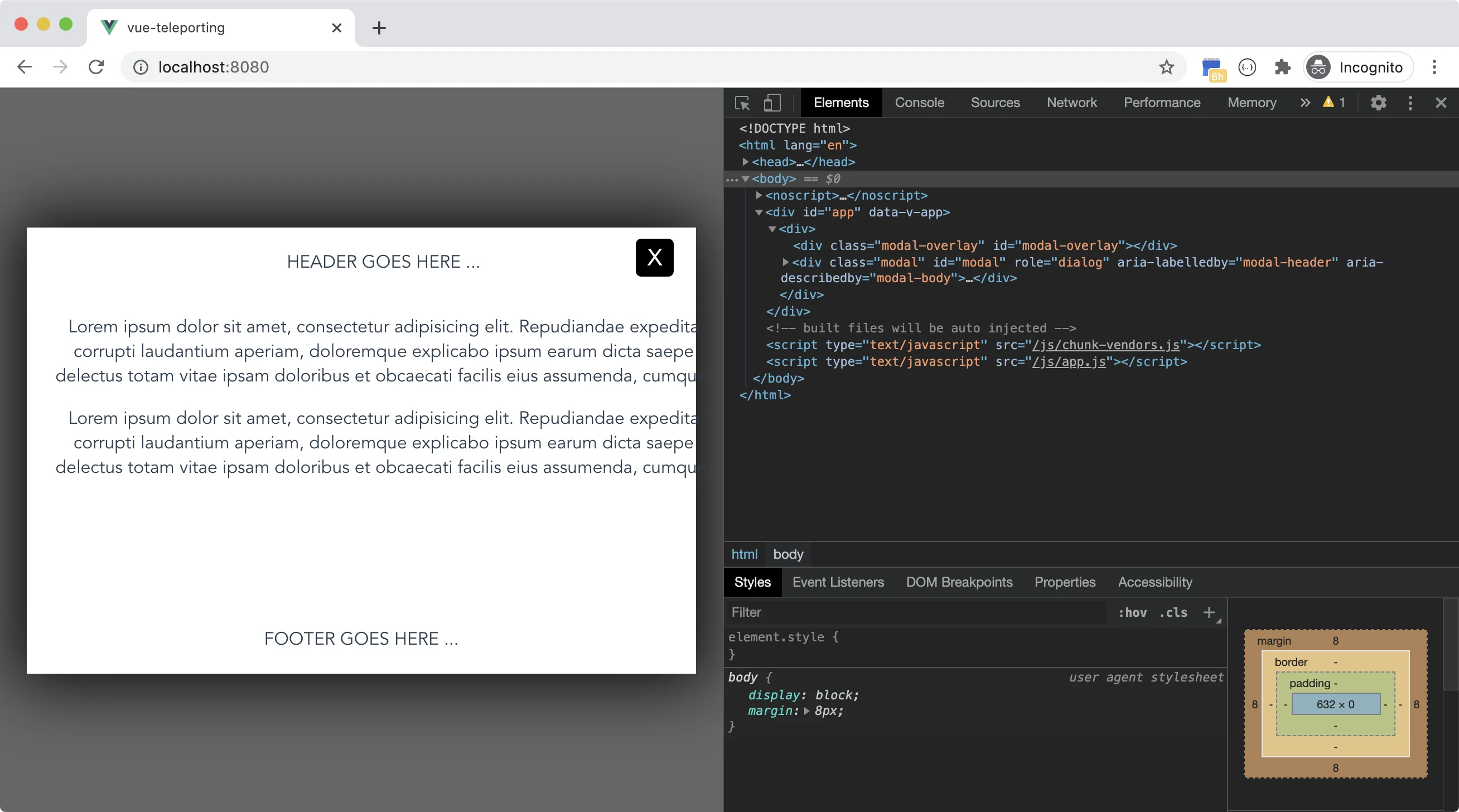
__Figure 1__ below shows the app running with the Modal component open.
vue-teleporting-1

That's it! Now we have a Modal Vue component.

Let's make use of this component in the next section.

Teleporting in Action

So far we have been using Vue 2 to build a Modal component. Now it's time to add the Vue 3 bits into our app and use Teleporting!

Open a terminal window and navigate to the root folder of our app. Then, run the following command to convert our Vue 2 app into a Vue 3 one.

vue add vue-next

Open the `/package.json` file and make sure the `dependencies` and `dev-dependencies` sections are similar to this below:
 "dependencies": {
    "core-js": "^3.6.5",
    "vue": "^3.0.0-rc.5"
  },
  "devDependencies": {
    "@vue/cli-plugin-babel": "~4.4.0",
    "@vue/cli-plugin-eslint": "~4.4.0",
    "@vue/cli-service": "~4.4.0",
    "@vue/compiler-sfc": "^3.0.0-rc.5",
    "babel-eslint": "^10.1.0",
    "eslint": "^6.7.2",
    "eslint-plugin-vue": "^7.0.0-alpha.0",
    "vue-cli-plugin-vue-next": "~0.1.3"
  },

The __vue-next__ package automatically converts it for you.

Switch back to the App.vue and replace its content with:

<template>
  <div>
    <h1>Demonstrating Teleporting in Vue 3</h1>
    <teleport to="#modal-area">
      <Modal @close-modal="closeModal">
        <template #body>
          <p>Lorem ipsum dolor sit amet, consectetur adipisicing elit. Repudiandae expedita corrupti laudantium aperiam, doloremque explicabo ipsum earum dicta saepe delectus totam vitae ipsam doloribus et obcaecati facilis eius assumenda, cumque.</p>
          <p>Lorem ipsum dolor sit amet, consectetur adipisicing elit. Repudiandae expedita corrupti laudantium aperiam, doloremque explicabo ipsum earum dicta saepe delectus totam vitae ipsam doloribus et obcaecati facilis eius assumenda, cumque.</p>
        </template>
      </Modal>
    </teleport>
  </div>
</template>

<script>
import Modal from "./components/Modal.vue";

export default {
  name: "App",
  components: {
    Modal,
  },
  methods: {
    closeModal() {},
  },
};
</script>

The component now uses a `` component to wrap the Modal component. The `to` property is now pointed to a `
` element located in the `/public/index.html` file.

Replace the contents of the /public/index.html file with the following:

<!DOCTYPE html>
<html lang="en">

<head>
  <meta charset="utf-8">
  <meta http-equiv="X-UA-Compatible" content="IE=edge">
  <meta name="viewport" content="width=device-width,initial-scale=1.0">
  <link rel="icon" href="<%= BASE_URL %>favicon.ico">
  <title><%= htmlWebpackPlugin.options.title %></title>
</head>

<body>
  <noscript>
    <strong>We're sorry but <%= htmlWebpackPlugin.options.title %> doesn't work properly without JavaScript enabled.
      Please enable it to continue.</strong>
  </noscript>
  <div id="app"></div>
  <div id="modal-area"></div>
  <!-- built files will be auto injected -->
</body>

</html>

Let's run the app and see it in action!

Figure 2 below shows the Vue 3 app running. vue-teleporting-2
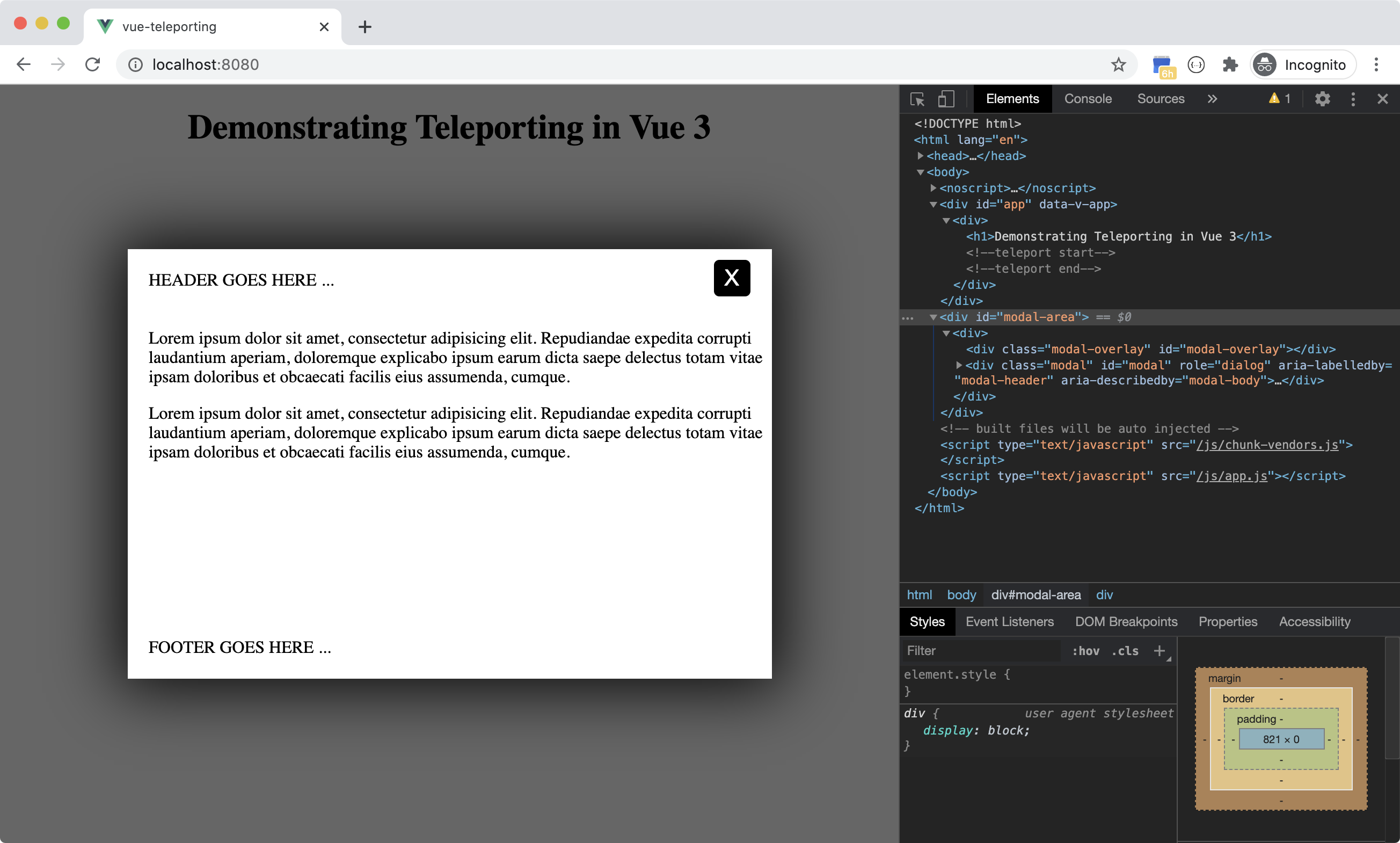
The Modal component is now rendered inside the <div id=”modal-area”/> outside the scope of the Vue 3 app and inside the <body> element of the index.html page.

You are nesting the Modal component inside the App.vue and Vue 3 will render it inside the <body> tag. Have your cake and eat it too!

How to close the Modal and remove its content from the DOM?

Let's make use of the disabled property of the <teleport> component and also the v-if Vue directive to close the Modal, and remove the component from the DOM.

<template>
  <div>
    <h1>Demonstrating Teleporting in Vue 3</h1>
    <teleport to="#modal-area" :disabled="shouldClose" v-if="!shouldClose">
      <Modal @close-modal="closeModal">
        <template #body>
          ...
        </template>
      </Modal>
    </teleport>
  </div>
</template>

<script>
import Modal from "./components/Modal.vue";

export default {
  name: "App",
  components: {
    Modal,
  },
  data() {
    return {
      shouldClose: false,
    };
  },
  methods: {
    closeModal() {
      this.shouldClose = true;
    },
  },
};
</script>

The code introduces a new reactive property named `shouldClose`. This property is assigned a value of `true` by default.

The code assigns the shouldClose property to the disabled property on the <teleport> component :disabled=”shouldClose”. As long as the value of shouldClose is false, the <teleport> component won't be disabled, hence it will render its content to the DOM.

When the user clicks the Close button, the button's event handler sets the value of shouldClose property to true. The <teleport> reactively stops rendering inside the <body> tag. However, it tries to render the Modal component in the position where it was originally defined- that is, inside the App.vue component.

Our goal is to prevent the <teleport> component from rendering anything to the DOM. We can achieve that by using the v-if=”!shouldClose” directive expression on the <teleport> component. This instructs the <teleport> component not to render its content anywhere inside the DOM.

That's all!

Conclusion

This article introduced the Teleporting feature coming along with Vue 3.

I hope you appreciate the importance and value of such an addition on the Vue framework. This will allow building app UIs to the standards and best practices of both the Vue framework, as well as UI building and design.


This Dot is a consultancy dedicated to guiding companies through their modernization and digital transformation journeys. Specializing in replatforming, modernizing, and launching new initiatives, we stand out by taking true ownership of your engineering projects.

We love helping teams with projects that have missed their deadlines or helping keep your strategic digital initiatives on course. Check out our case studies and our clients that trust us with their engineering.

You might also like

Incremental Hydration in Angular cover image

Incremental Hydration in Angular

Incremental Hydration in Angular Some time ago, I wrote a post about SSR finally becoming a first-class citizen in Angular. It turns out that the Angular team really treats SSR as a priority, and they have been working tirelessly to make SSR even better. As the previous blog post mentioned, full-page hydration was launched in Angular 16 and made stable in Angular 17, providing a great way to improve your Core Web Vitals. Another feature aimed to help you improve your INP and other Core Web Vitals was introduced in Angular 17: deferrable views. Using the @defer blocks allows you to reduce the initial bundle size and defer the loading of heavy components based on certain triggers, such as the section entering the viewport. Then, in September 2024, the smart folks at Angular figured out that they could build upon those two features, allowing you to mark parts of your application to be server-rendered dehydrated and then hydrate them incrementally when needed - hence incremental hydration. I’m sure you know what hydration is. In short, the server sends fully formed HTML to the client, ensuring that the user sees meaningful content as quickly as possible and once JavaScript is loaded on the client side, the framework will reconcile the rendered DOM with component logic, event handlers, and state - effectively hydrating the server-rendered content. But what exactly does "dehydrated" mean, you might ask? Here's what will happen when you mark a part of your application to be incrementally hydrated: 1. Server-Side Rendering (SSR): The content marked for incremental hydration is rendered on the server. 2. Skipped During Client-Side Bootstrapping: The dehydrated content is not initially hydrated or bootstrapped on the client, reducing initial load time. 3. Dehydrated State: The code for the dehydrated components is excluded from the initial client-side bundle, optimizing performance. 4. Hydration Triggers: The application listens for specified hydration conditions (e.g., on interaction, on viewport), defined with a hydrate trigger in the @defer block. 5. On-Demand Hydration: Once the hydration conditions are met, Angular downloads the necessary code and hydrates the components, allowing them to become interactive without layout shifts. How to Use Incremental Hydration Thanks to Mark Thompson, who recently hosted a feature showcase on incremental hydration, we can show some code. The first step is to enable incremental hydration in your Angular application's appConfig using the provideClientHydration provider function: ` Then, you can mark the components you want to be incrementally hydrated using the @defer block with a hydrate trigger: ` And that's it! You now have a component that will be server-rendered dehydrated and hydrated incrementally when it becomes visible to the user. But what if you want to hydrate the component on interaction or some other trigger? Or maybe you don't want to hydrate the component at all? The same triggers already supported in @defer blocks are available for hydration: - idle: Hydrate once the browser reaches an idle state. - viewport: Hydrate once the component enters the viewport. - interaction: Hydrate once the user interacts with the component through click or keydown triggers. - hover: Hydrate once the user hovers over the component. - immediate: Hydrate immediately when the component is rendered. - timer: Hydrate after a specified time delay. - when: Hydrate when a provided conditional expression is met. And on top of that, there's a new trigger available for hydration: - never: When used, the component will remain static and not hydrated. The never trigger is handy when you want to exclude a component from hydration altogether, making it a completely static part of the page. Personally, I'm very excited about this feature and can't wait to try it out. How about you?...

Understanding Sourcemaps: From Development to Production cover image

Understanding Sourcemaps: From Development to Production

What Are Sourcemaps? Modern web development involves transforming your source code before deploying it. We minify JavaScript to reduce file sizes, bundle multiple files together, transpile TypeScript to JavaScript, and convert modern syntax into browser-compatible code. These optimizations are essential for performance, but they create a significant problem: the code running in production does not look like the original code you wrote. Here's a simple example. Your original code might look like this: ` After minification, it becomes something like this: ` Now imagine trying to debug an error in that minified code. Which line threw the exception? What was the value of variable d? This is where sourcemaps come in. A sourcemap is a JSON file that contains a mapping between your transformed code and your original source files. When you open browser DevTools, the browser reads these mappings and reconstructs your original code, allowing you to debug with variable names, comments, and proper formatting intact. How Sourcemaps Work When you build your application with tools like Webpack, Vite, or Rollup, they can generate sourcemap files alongside your production bundles. A minified file references its sourcemap using a special comment at the end: ` The sourcemap file itself contains a JSON structure with several key fields: ` The mappings field uses an encoding format called VLQ (Variable Length Quantity) to map each position in the minified code back to its original location. The browser's DevTools use this information to show you the original code while you're debugging. Types of Sourcemaps Build tools support several variations of sourcemaps, each with different trade-offs: Inline sourcemaps: The entire mapping is embedded directly in your JavaScript file as a base64 encoded data URL. This increases file size significantly but simplifies deployment during development. ` External sourcemaps: A separate .map file that's referenced by the JavaScript bundle. This is the most common approach, as it keeps your production bundles lean since sourcemaps are only downloaded when DevTools is open. Hidden sourcemaps: External sourcemap files without any reference in the JavaScript bundle. These are useful when you want sourcemaps available for error tracking services like Sentry, but don't want to expose them to end users. Why Sourcemaps During development, sourcemaps are absolutely critical. They will help avoid having to guess where errors occur, making debugging much easier. Most modern build tools enable sourcemaps by default in development mode. Sourcemaps in Production Should you ship sourcemaps to production? It depends. While security by making your code more difficult to read is not real security, there's a legitimate argument that exposing your source code makes it easier for attackers to understand your application's internals. Sourcemaps can reveal internal API endpoints and routing logic, business logic, and algorithmic implementations, code comments that might contain developer notes or TODO items. Anyone with basic developer tools can reconstruct your entire codebase when sourcemaps are publicly accessible. While the Apple leak contained no credentials or secrets, it did expose their component architecture and implementation patterns. Additionally, code comments can inadvertently contain internal URLs, developer names, or company-specific information that could potentially be exploited by attackers. But that’s not all of it. On the other hand, services like Sentry can provide much more actionable error reports when they have access to sourcemaps. So you can understand exactly where errors happened. If a customer reports an issue, being able to see the actual error with proper context makes diagnosis significantly faster. If your security depends on keeping your frontend code secret, you have bigger problems. Any determined attacker can reverse engineer minified JavaScript. It just takes more time. Sourcemaps are only downloaded when DevTools is open, so shipping them to production doesn't affect load times or performance for end users. How to manage sourcemaps in production You don't have to choose between no sourcemaps and publicly accessible ones. For example, you can restrict access to sourcemaps with server configuration. You can make .map accessible from specific IP addresses. Additionally, tools like Sentry allow you to upload sourcemaps during your build process without making them publicly accessible. Then configure your build to generate sourcemaps without the reference comment, or use hidden sourcemaps. Sentry gets the mapping information it needs, but end users can't access the files. Learning from Apple's Incident Apple's sourcemap incident is a valuable reminder that even the largest tech companies can make deployment oversights. But it also highlights something important: the presence of sourcemaps wasn't actually a security vulnerability. This can be achieved by following good security practices. Never include sensitive data in client code. Developers got an interesting look at how Apple structures its Svelte codebase. The lesson is that you must be intentional about your deployment configuration. If you're going to include sourcemaps in production, make that decision deliberately after considering the trade-offs. And if you decide against using public sourcemaps, verify that your build process actually removes them. In this case, the public repo was quickly removed after Apple filed a DMCA takedown. (https://github.com/github/dmca/blob/master/2025/11/2025-11-05-apple.md) Making the Right Choice So what should you do with sourcemaps in your projects? For development: Always enable them. Use fast options, such as eval-source-map in Webpack or the default configuration in Vite. The debugging benefits far outweigh any downsides. For production: Consider your specific situation. But most importantly, make sure your sourcemaps don't accidentally expose secrets. Review your build output, check for hardcoded credentials, and ensure sensitive configurations stay on the backend where they belong. Conclusion Sourcemaps are powerful development tools that bridge the gap between the optimized code your users download and the readable code you write. They're essential for debugging and make error tracking more effective. The question of whether to include them in production doesn't have a unique answer. Whatever you decide, make it a deliberate choice. Review your build configuration. Verify that sourcemaps are handled the way you expect. And remember that proper frontend security doesn't come from hiding your code. Useful Resources * Source map specification - https://tc39.es/ecma426/ * What are sourcemaps - https://web.dev/articles/source-maps * VLQ implementation - https://github.com/Rich-Harris/vlq * Sentry sourcemaps - https://docs.sentry.io/platforms/javascript/sourcemaps/ * Apple DMCA takedown - https://github.com/github/dmca/blob/master/2025/11/2025-11-05-apple.md...

Nuxt.js for Complete Beginners cover image

Nuxt.js for Complete Beginners

The Vuejs Amsterdam online conference was held at the end of February in 2021. It brought together Vue.js enthusiasts and community members from around the world. Many interesting topics were presented and covered. The focus, of course, was on Vue.js 3. In addition, the creators of Nuxt.js had the opportunity to showcase it from the current standpoint in development, to their intentions for it down the track. They even demonstrated a pre-alpha version of Nuxt.js 3, that’s based on Vue.js 3. This article will start by briefly covering general Nuxt.js concepts, creating a new Nuxt.js app using the create-nuxt-app CLI, and finally, going through the different files and folders that Nuxt.js auto-generates for us. Let’s start! Nuxt.js Concepts Nuxt.js is a web development framework that builds on top of the Vue.js framework. It allows you to use your Vue.js skills to build a more confident, structured, SEO friendly website purely in Vue.js. Remember when you had to mess with the Vue.js SSR module and the Vue Meta module to build a SEO friendly website? On top of that, you had to install and use Vuex and Vue Router too! Well, Nuxt.js takes care of that! No more chaotic setup and scaffolding to start a new Vue.js app. With the help of the create-nuxt-app CLI, you can scaffold a Nuxt.js app in no time. What’s remarkable about Nuxt.js is its capacity to enforce convention over configuration. This means, you write less configuration files by sticking to a specific directory structure that makes Nuxt.js happy and saves you a ton of time! Apps supported by Nuxt.js Nuxt.js supports building a variety of web apps, including the following: Server-Side Rendering (SSR) SSR apps are also known as Universal Apps. The app gets rendered on the server-side before it is sent to the client-side, and is displayed in the browser. This is the best option when working on an SEO friendly website written in Vue.js. You can read the full documentation for the SSR apps here: SSR Apps Single Page Apps (SPA) This is what you’ve been doing so far with Vue.js. The app is compiled into a few JS and CSS files. When the user requests the app, the files are downloaded to the client-side, and the Vue.js engine takes over rendering and displaying the app. Static Site Generation (SSG) Nuxt.js can pre-render your app at build time. This means the entire app will be converted to simple static HTML files that can be hosted and served over a Content Delivery Network (CDN). The SSG option makes an app a legal JAMStack app. You can read the full documentation for the Static Site Generation here: Static Site Generation. File System Routing Nuxt.js automatically generates all the Vue.js Routes in your app based on the folder structure inside the *pages* folder. For example, consider having this folder structure: ` Nuxt.js automatically generates the following route configuration: ` You can read about *File System Routing* here: File System Routing. Data Fetching Inside a Nuxt.js app, you can still use the old techniques you kmow when developing Vue.js apps. However, we have a new player here! Server-side rendering. Nuxt.js provides a new set of data-hooks that you can implement so that Nuxt.js can prefetch data when generating the app at the server-side. Here are two data-hooks offered by Nuxt.js: fetch() hook This hook was introduced with Nuxt.js 2.12+ release. It can be used inside Vue.js components stored in the *pages* folder and *components* folder. asyncData() hook This hook has been around for a while now, and can be used only inside the Vue.js components stored in the *pages* folder. You can read more about *Data Fetching* hooks here: Data Fetching. Meta Tags and SEO Nuxt.js makes it so intuitive to add SEO support to your SSR app. You can add Metadata to your app at two different levels: - Globally using the *nuxt.config.js* file - Locally inside a Nuxt.js Page You can read about *Meta Tags and SEO* hooks here: Meta Tags and SEO. Create our first Nuxt.js app Let’s use the create-nuxt-app CLI, and create our first Nuxt.js app! Before you start, you want to make sure you have all the perquisites required before you can install and run the CLI. For this article, I am going to use npx. However, you can also use npm, or feel free to use yarn. Step 0 Start by running the following command: ` This command uses the create-nuxt-app tool, and specifies the name of the project- in this case *my-first-nuxt-app*. The CLI will ask you a few questions that are important to scaffold the new Nuxt.js app based on your own preferences and decisions. Here’s what to expect. Step 1 First, let’s confirm the project name as shown in the Figure 1. Give the app a name and hit Enter. _Figure 1: Specify project name_ Step 2 You’ve got to choose whether you want to develop your app with TypeScript or JavaScript. I will select *JavaScript* as shown in Figure 2. _Figure 2: Programming language_ Step 3 Next, you need to choose between Npm or Yarn. I will select *Npm* as shown in Figure 3. _Figure 3: Package manager_ Step 4 In this step, you’ve got to select the UI framework you are going to use in the app. I will select *Tailwind CSS* as shown in Figure 4. Even if you skip this step, you can add any UI framework you want later. _Figure 4: UI framework_ Step 5 Nuxt.js offers a set of modules that you can use right away in your apps. For this app, I will pick the *Axios* module. Figure 5 shows the selection. _Figure 5: Nuxt.js modules_ Step 6 The CLI makes it super intuitive to integrate linters in your app. I will pick up both *ESLint* and *Prettier*. Figure 6 shows the selection. _Figure 6: Linting tools_ Step 7 Now it’s time to select a testing framework. For the sake of this article, I will select *None*. Feel free to add any. Figure 7 shows the selection. _Figure 7: Testing framework_ Step 8 By default, Nuxt.js supports two rendering modes. SSR/SSG and SPA. I will pick *SSR/SSG* to take advantage of the Server-side rendering. Figure 8 shows the selection. _Figure 8: Rendering mode_ Step 9 The deployment target depends on our selection in Step 8. In this case, we have two options to select from. Server (using a Node.js server hosting) or Static (CDN/JAMStack hosting). I will select the *Server* deployment target as shown in Figure 9. _Figure 9: Deployment target_ Step 10 For the development tools, I will keep it simple and select the *jsconfig.json* option as shown in Figure 10. _Figure 10: Development tools_ Step 11 I won’t be using any continuous integration for this app. I will simply select *None* as shown in Figure 11. _Figure 11: Continuous integration_ Step 12 Finally, the CLI asks whether you want to use any version control system. A version control system is always recommended when doing any kind of development. I will select *Git* as shown in Figure 12. _Figure 12: Version control system_ These twelve questions are enough for the CLI to start scaffolding and generating your app based on your preferences. It takes a few seconds to have everything ready for you. If all goes well, you should see the following as in Figure 13. _Figure 13: create-nuxt-app new app instructions_ The CLI gives you instructions on how to run and build the app. Step 13 Let’s run the app by following the steps highlighted in Figure 13. Run the following commands: ` The CLI compiles both the client and server parts of the app and starts the Node.js server on port 3000 as shown in Figure 14. _Figure 14: App is running_ Step 14 Open a browser instance and navigate to the URL *http://localhost:3000/* and you should see the default Nuxt.js app rendering. Figure 15 shows the app running in a browser. _Figure 15: App rendering in a browser_ That’s all you need to get started on your first Nuxt.js app. Enjoy! Nuxt.js Directory Structure Let’s quickly go through the different folders the CLI generated for us. I will start by opening the new app inside Visual Studio Code. Figure 16 shows the app open inside the editor. _Figure 16: App folders and files_ Let’s go through each folder, and explain their roles briefly. .nuxt The *.nuxt* folder is (re-)generated by the CLI every time you run or build the app. It has all the automatically generated files that Nuxt.js uses to run your app. You can read more about the *.nuxt* folder here: .nuxt. assets The *assets* folder contains all of your uncompiled files such as Sass files, images, or font files. Nuxt.js makes use of Webpack to load all the files inside this folder. You can read more about the *assets* folder here: assets. components This folder holds all of your Vue.js components. Nuxt.js components are not different from any other Vue.js component. Read more about the *components* folder here: components. layouts This folder contains all of your layout components. These are Vue.js components with placeholders for content. At run time, the component and the layout it uses get merged together into a single component. Layouts in Nuxt.js allows you to define fixed UI sections in your app instead of having to repeat things over and over. You can read more about the *layouts* folder here: layouts. pages This folder also holds Vue.js components. It is unique because Nuxt.js converts this folder structure (components with sub-folders) into actual Vue.js Routes. You can read about the *pages* folder here: pages. plugins This folder contains global JavaScript functions that you want to run before Nuxt.js instantiates the root Vue.js app. These functions are called *Plugins*. They can take multiple forms. For instance, you create a Nuxt.js Plugin to load a Vue.js Plugin to your app. You can also install, and make use of a third-party Nuxt.js Plugin. You can read more about the *plugins* folder here: plugins. static The name of this folder says it all! This folder is directly mapped to the server root. You can place any file in this folder that you do not want Webpack to process. For example, you can place a favicon file, any CSS files, and many other such files. You can read more about the *static* folder here: static. store The *store* folder holds all the Vuex store files. Nuxt.js comes with the Vuex module installed, but keeps it disabled. In order to enable the Vue store in your Nuxt.js app, create an *index.js* file inside this folder, and Nuxt.js will automatically enable it for you. You can read more about *store* folder here: store. nuxt.config.js As I mentioned, Nuxt.js prefers convention over configuration. However, at some times you may need to tweak the configuration a little. Nuxt.js provides the *nuxt.config.js* file to allow for custom configuration settings on the app level. Read more about *nuxt.config* file here: nuxt.config. That’s just a quick overview of what folders are generated by the Nuxt.js CLI. There are more you can read up on. You can find all the information you need on Nuxt.js Documentation website. Conclusion In this article, you were introduced to Nuxt.js and took a few baby steps towards creating your first Nuxt.js app. In the coming articles, we will immerse ourselves in the Nuxt.js world, and explore this fresh and promising web development framework together. You can follow me on Twitter to see more of my work....

This Dot AI Field Notes - Anatomy of a Coding Harness cover image

This Dot AI Field Notes - Anatomy of a Coding Harness

A coding agent is not magic, it’s a loop. We call this a harness. The harness is a deterministic layer of code that wraps an LLM. Claude Code is a harness. Codex is a harness. Pi is a harness. The harness, on initialization, provides to the LLM a system prompt defining all tools the harness implements for the LLM. Without the harness, you cannot read or modify files on the user’s local filesystem without them having to copy-and-pasting by hand. The harness is the final place where engineers can customize how coding agents do work before the LLM takes over. Think of the LLM as a train and the harness as the rails the train rides on. Below… one full task executed by a harness, traced step by step....

Let's innovate together!

We're ready to be your trusted technical partners in your digital innovation journey.

Whether it's modernization or custom software solutions, our team of experts can guide you through best practices and how to build scalable, performant software that lasts.

Prefer email? hi@thisdot.co